- Home

- Wireless Anycast Dongle Adapter
.jpg)
.jpg)
.jpg)
.jpg)
.jpg)
.jpg)
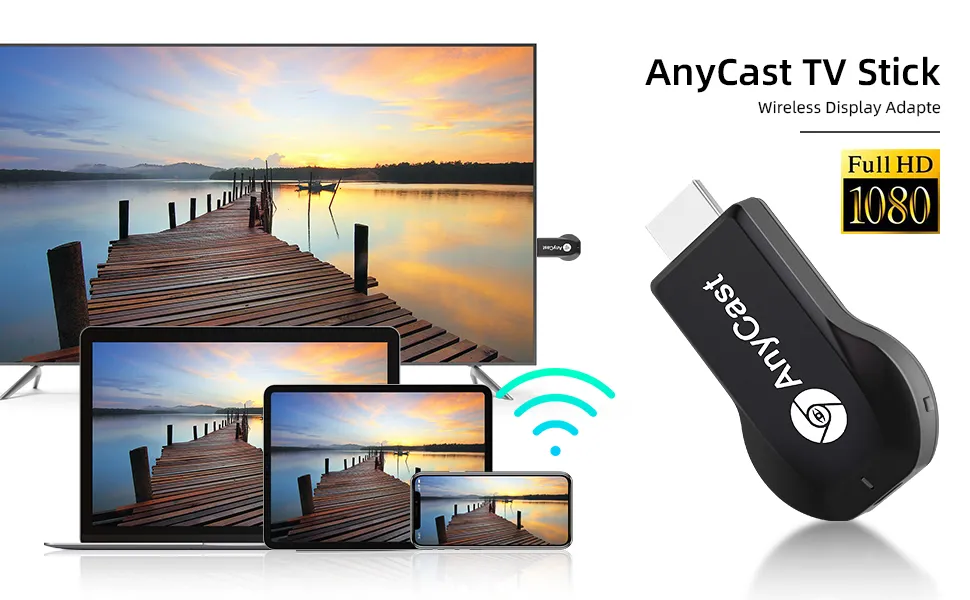
What is an HDMI Wireless Display Adapter?
An HDMI Wireless Display Adapter is to cast what you see on your mobile device(smartphone/tablet) to another bigscreen(TV/monitor/projector).Please Note:- A source screen must be Airplay supported, or Miracast supported. Such as iOS and Mac OS devices are Airplay supported devices.- Most Android devices and Windows devices are Miracast supported devices.- A target screen must be HDMI equipped, such as TV, projector, monitor etc.
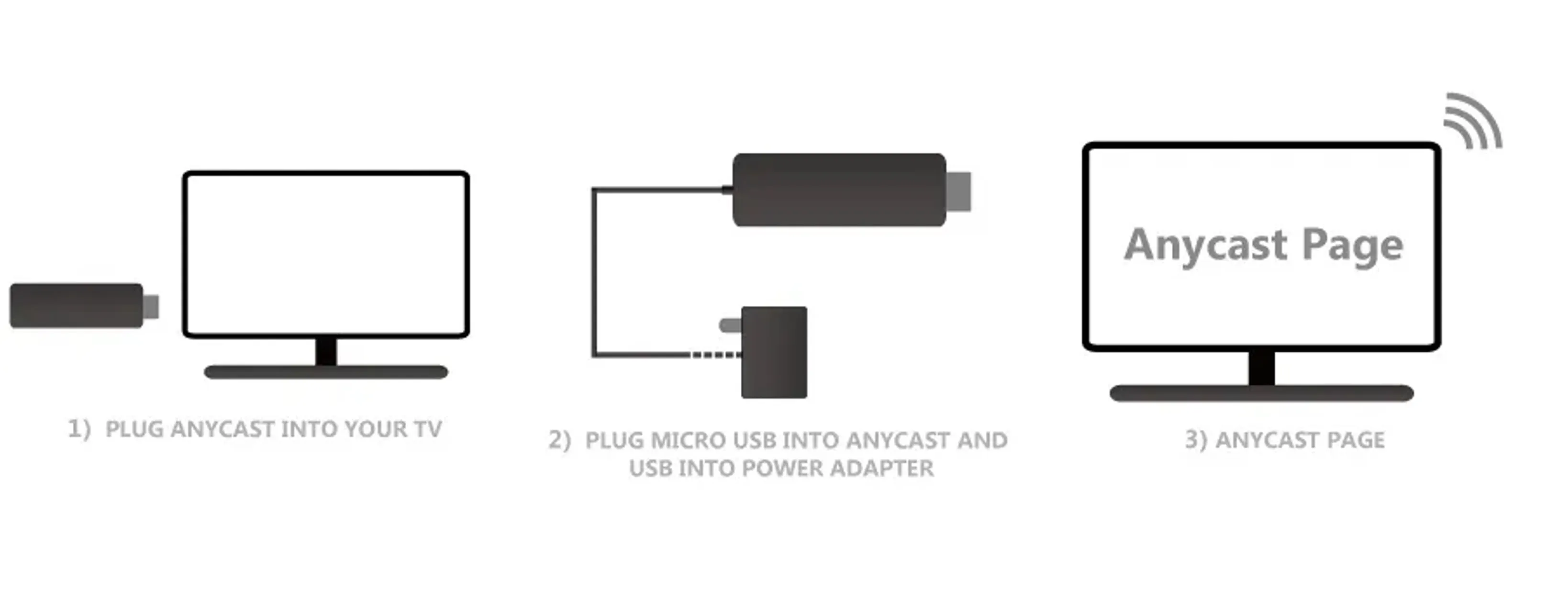
1) Plug Ancyast dongle into your hd display: Plug AnyCast dongle into HDMI port on TV and switch TV to the right input source.
2) Plug USB cable for power supply: Connect WiFi cable (micro USB head) to AnyCast dongle. Plug USB cable into an external USB power adapter(power adapter is not included).
3) Anycast connected successfully: After connection, switch display to selected channel, and AnyCast page shows up on your display.
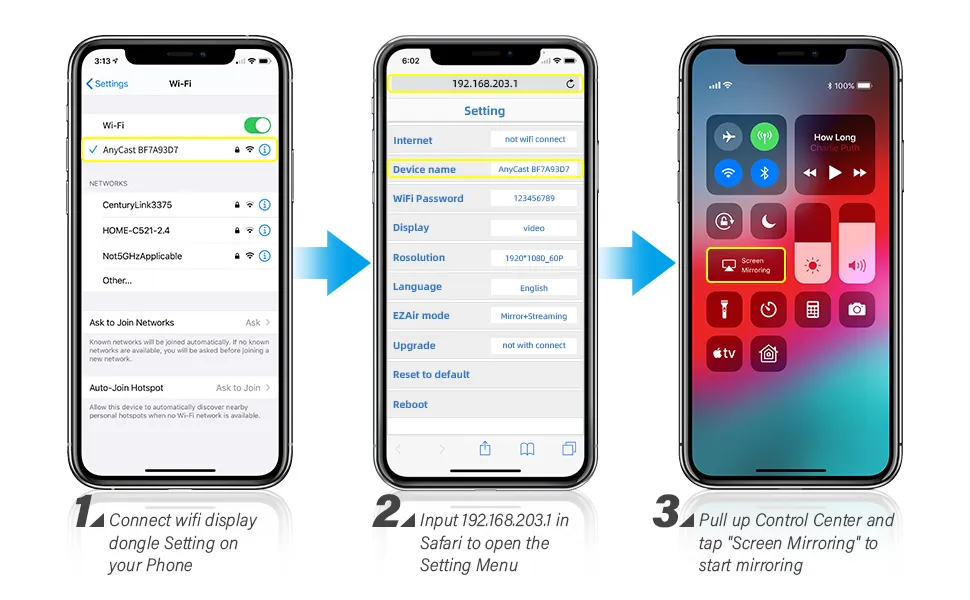
- Step 1. Connect AnyCast SSID in WiFi Setting on your iPhone/ iPad/ Mac
- Step 2. Go to Safari and input 192.168.203.1 to come to the setting menu
Note: In setting menu, you can connect your home wifi here by clicking "Internet" and Choosing your home Wifi to connect. Once connected, no need to reconnect again. Also, language , Anycast password, and Resolution can be changed by yourself in setting page.- Step 3. Pull up the Control Center on iPhone and go to Airplay mirroring, and select AnyCast dongle to start to mirror.
2. Once the Anycast dongle connects to your WiFi network successfully, the IP address 192.168.203.1 goes invalid, this generates anew IP address on your TV to access the Anycast setup page if needed.
3. Once the Anycast dongle and your phone are connected to the same WiFi network, do Screen Mirroring directly for next use, no need to other connection.
MOST IMPORTANT: If you dont have WiFi network, Please skip the Step 2, only do the Step 1 and Step 3 above. In this way, you use Cellular Data to access the Internet.
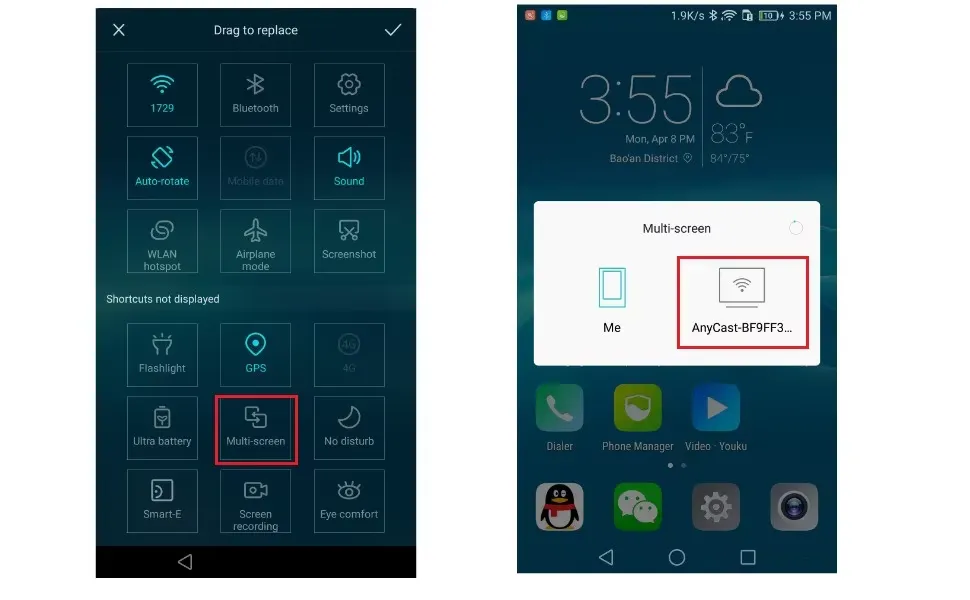
- Step 1. Press the button on the dongle to switch to Android mode
- Step 2. Find Miracast(wireless display/smartview/play to etc) on your Android device, and pair with Anycast to start mirror.Note: if you are not sure about Miracast, you can download our EZMira app to pair with Anycast dongle to mirror directly.
To access the setting menu of Anycast dongle:
1. Connect AnyCast in WiFi Setting on your device
2. Go to a browser and input 192.168.203.1 on the very top searching bar to come to the setting menu, you can set all setting of Anycast here.
Please note for Android Users:
1. Miracast protocol has different names on different Android devices, please find your Miracast protocol correctly.
2. Not all Android devices support Miracast protocol, please check whether your phone supports Miracast protocol or not.

CONNECTION PERFECTION


.svg)
